
Monorean Inbox Guide
Receive the pictures from your Monorean Cam in Monorean Inbox
Share access to your Monorean Cam
You can share access to your Monorean Cam with others. Instead of sharing your Monorean Inbox login credentials, simply grant access to your Monorean Cam units.
Your invitee will be able to see all photos from your CAMs
From your CAM List, click on Share your CAMs here with friends and enter the email address of the person you want to share access with. If your friend does not have a Monorean Inbox account, we will send them an invitation link by email.
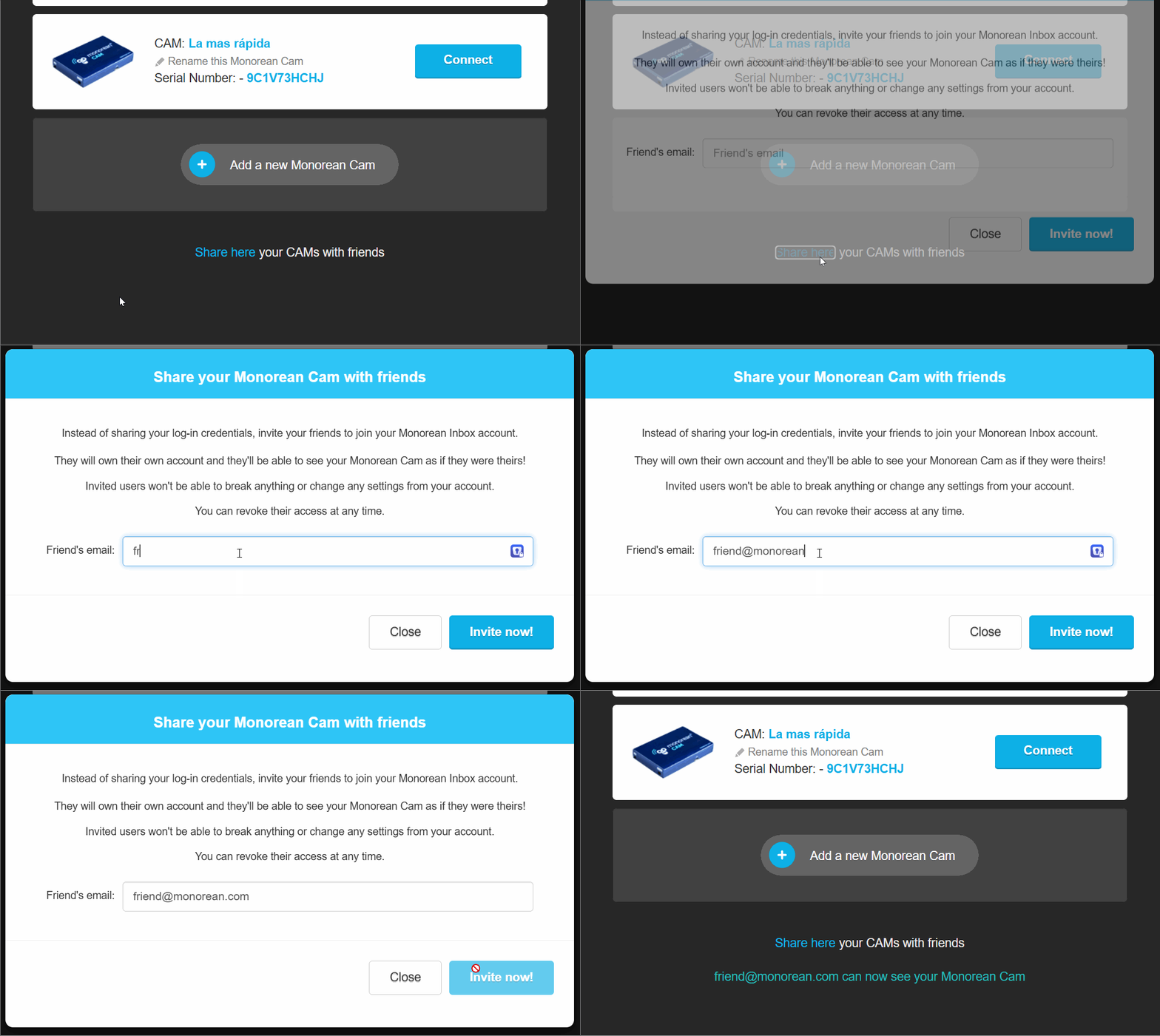
Your invitees will have their own Monorean Inbox account and will be able to view your Monorean Cam as if it were their own.
Invited users will not be able to break anything
CAMs I have access to
Shared Monorean Cam units will be immediately available to the invitee in their CAM List:
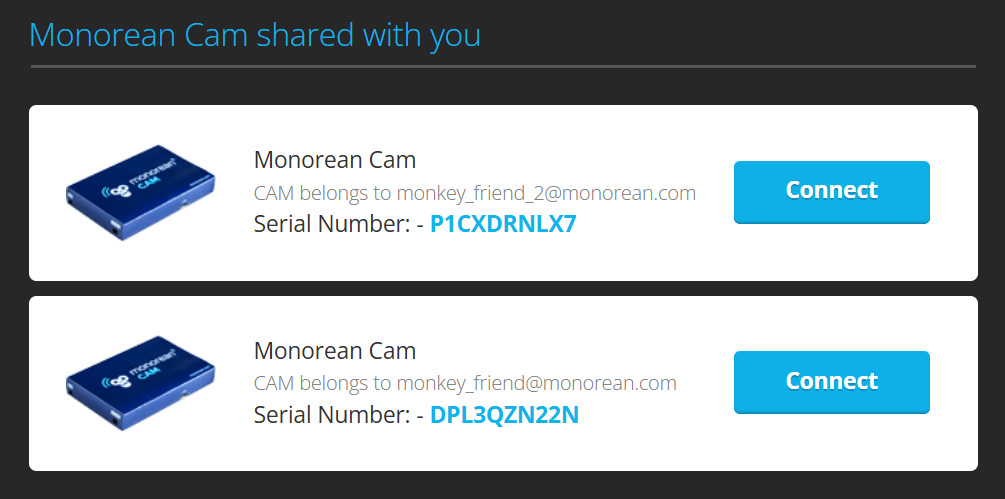 Monorean Cam units that other users have shared with me.
Revoke access to your CAMs
You can revoke any user’s access that you’ve previously granted. To do this, from the CAM List, click on Configure Account:
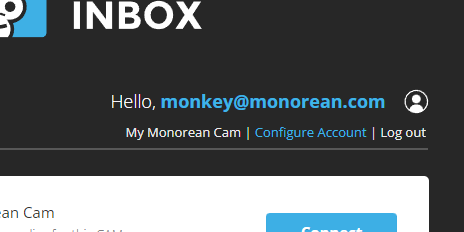 Click on Configure Account
At the bottom, you will find all users who have access to your Monorean Cam:
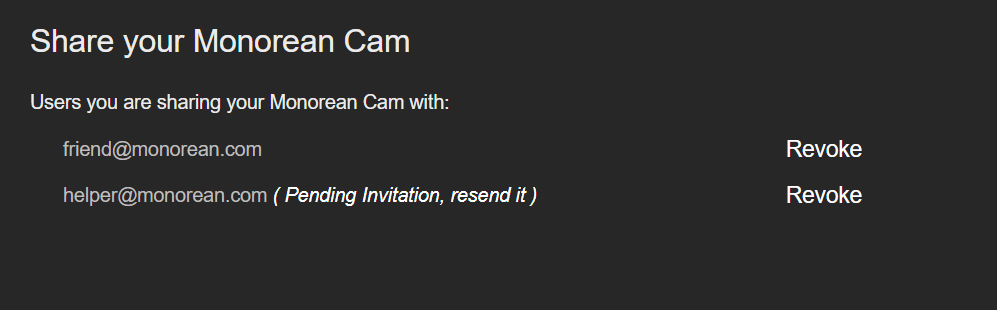 Users you share your CAMs with
Simply click on Revoke and the user will no longer have access to your Monorean Cam.
Stop following CAMs you’ve been invited to
When someone shares their Monorean Cam units with you, they will appear in your CAM List. The owner can revoke your access at any time, but you can also choose to stop following them.
To do this, from the CAM List, click on Configure Account. At the bottom, you will find all users who have shared their Monorean Cam with you.
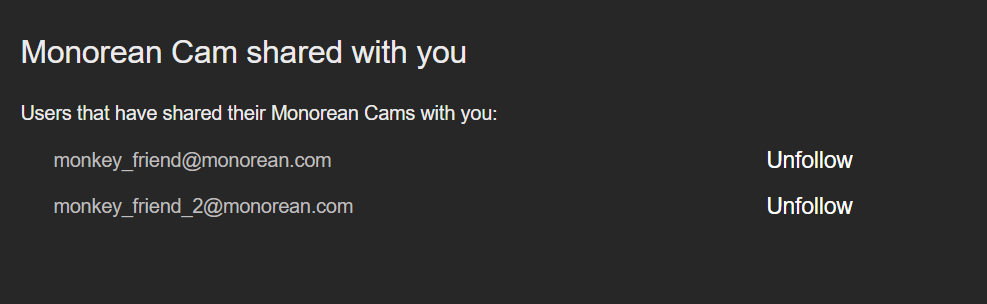 Users who have shared their CAMs with you
Simply click Unfollow and the shared CAMs from that user will no longer appear in your CAM List.