
Monorean Inbox Guide
Receive the pictures from your Monorean Cam in Monorean Inbox
List of CAMs
After logging into your Monorean Inbox account, you can access the CAM List. If this is your first time logging into your account, your Monorean Cam that you used during account registration will be added automatically.
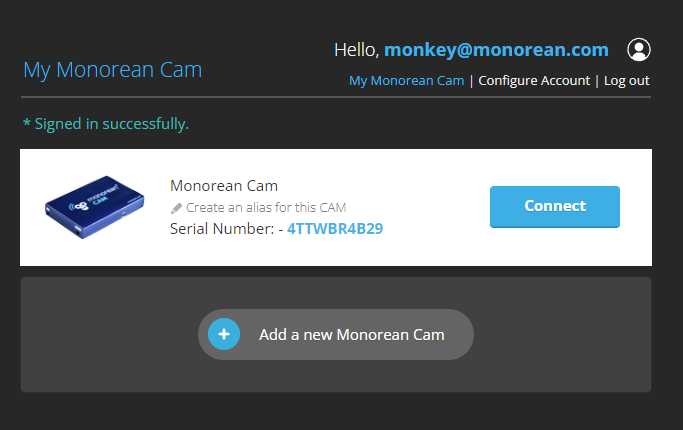 CAM List
Connecting to your CAM
To start receiving images from your Monorean Cam, click Connect. If this is the first time you are using your Monorean Cam, you will automatically be redirected to the set-up process. In case your Monorean Cam is already configured, Monorean Inbox will try to connect to your Monorean Cam:
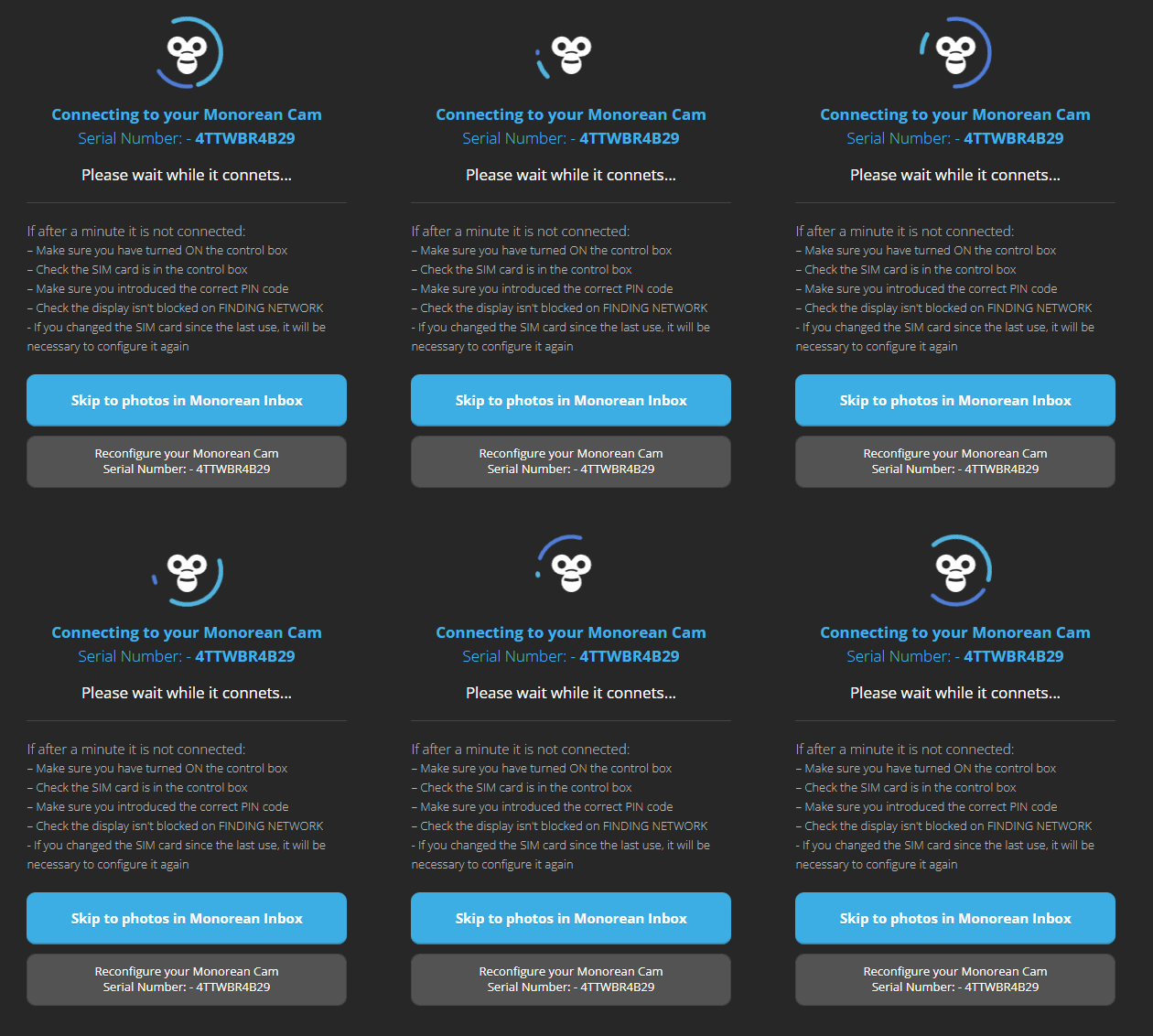 Connecting with Monorean Cam
You will only have to turn on the Control Box. In case you have changed the SIM card since the last use, you will need to set-up your Monorean Cam.
Don’t forget to turn on your Control Box.
Adding an additional CAM
If you already have a Monorean Inbox account and need to add a new Monorean Cam to your account, you can do so by clicking on Add a new Monorean Cam. Enter the serial number and press the Add CAM button.
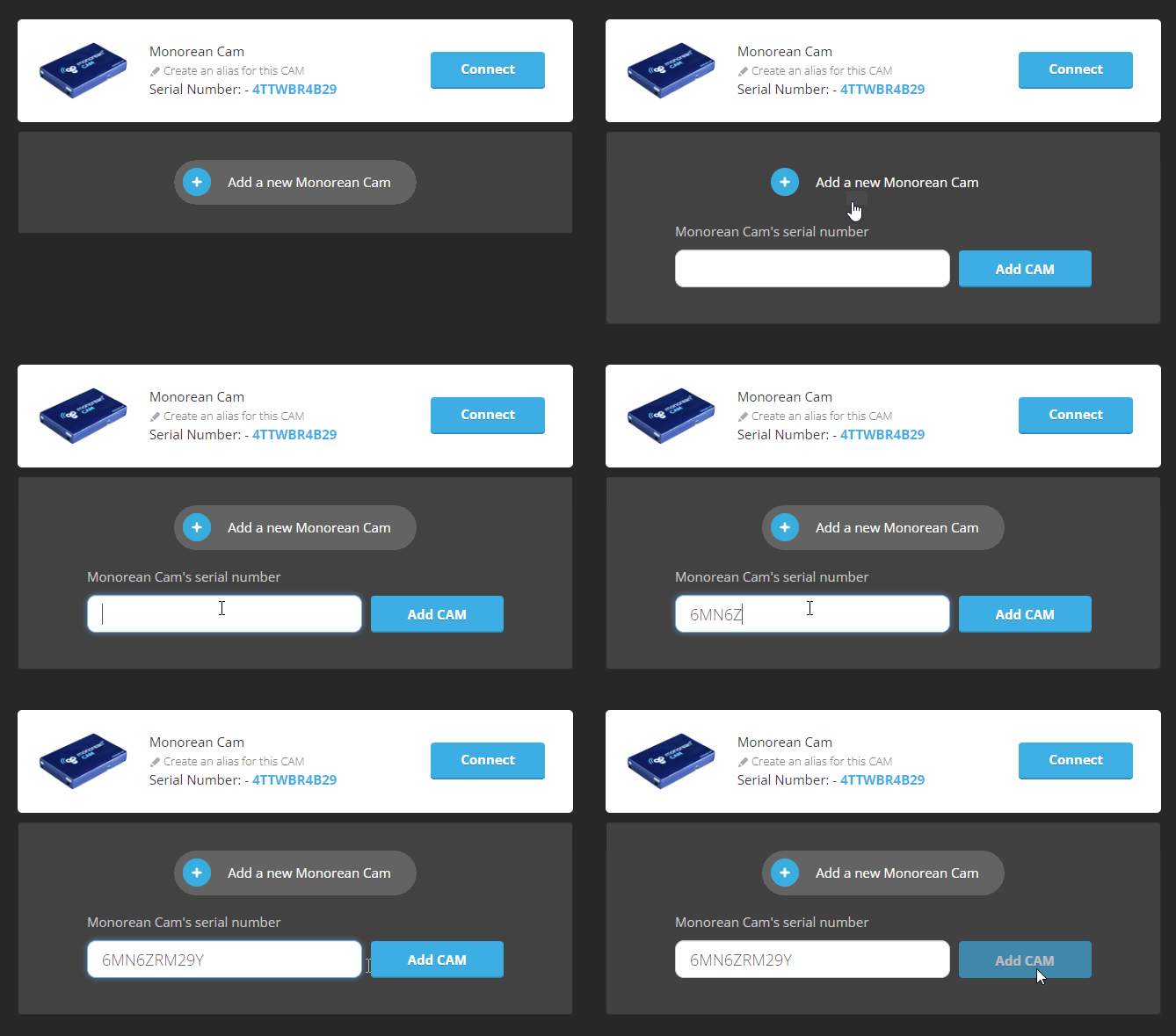 Add a new Monorean Cam
You can have several Monorean Cam units on the same account.
CAM units shared with you
If someone is sharing their Monorean Cam with you, you will be able to see them on your CAM list:
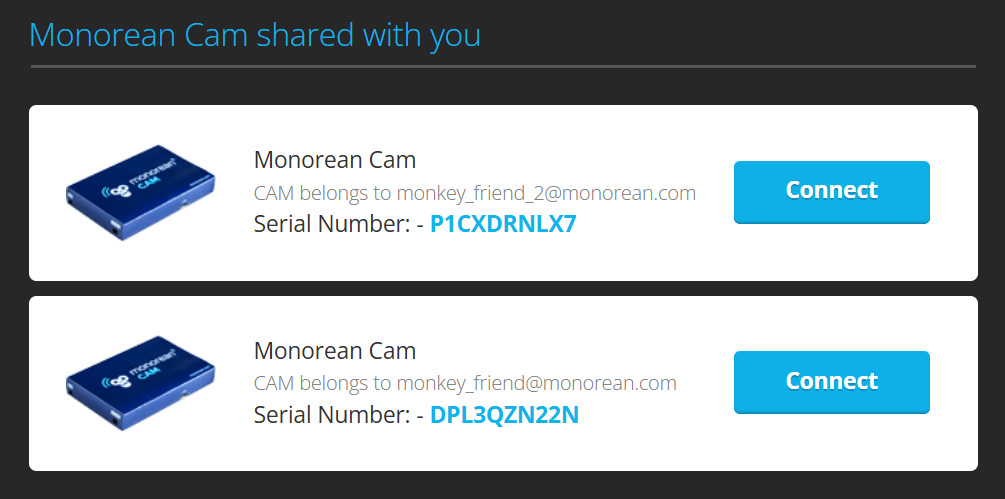 Monorean Cam units other users have shared with me.
You will be able to find more information on how to share your Monorean Cam on the following section of the Monorean Helps guides: Monorean Inbox, share your CAM.